


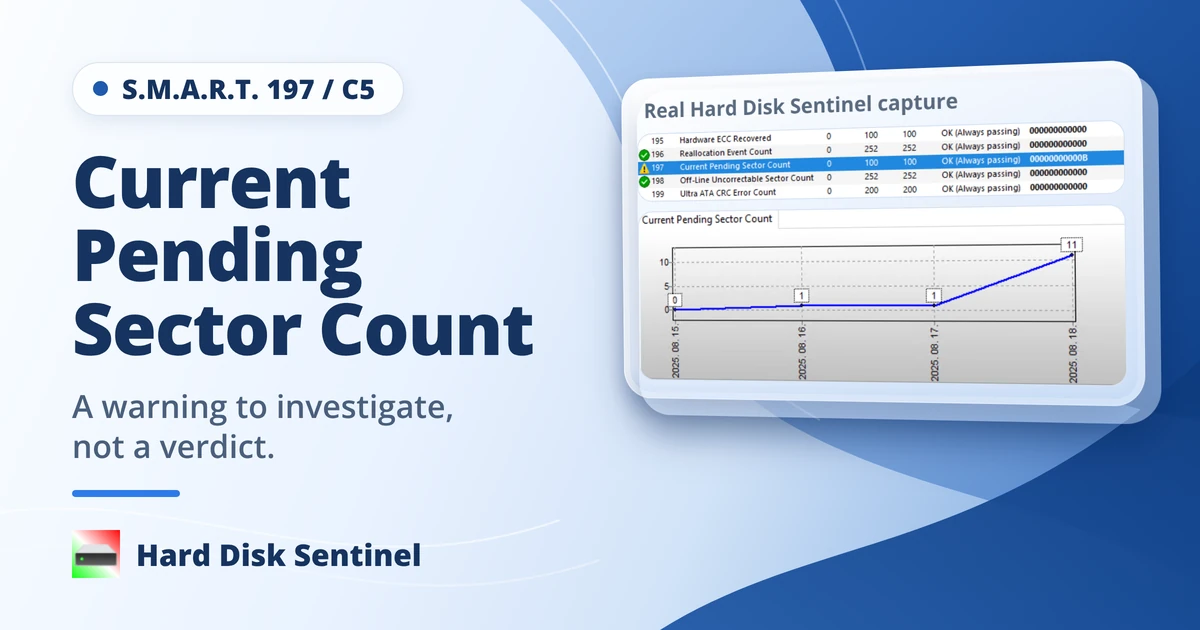
A non-zero Current Pending Sector Count means your drive tried to read at least one sector, did not get a reliable result, and has not yet decided what to do with that sector. The attribute is S.M.A.R.T. 197. Some tools, including CrystalDiskInfo and HD Tune, label it C5, which is the same number written in hexadecimal.
It is a warning, not a verdict. A pending sector can return to normal after the drive rewrites and verifies it, it can be moved to the drive’s spare area, or it can be an early sign of a drive that is wearing out. The number alone cannot tell you which of these is happening.
Do this first:
- If the drive still behaves normally, copy the files you cannot replace to another drive or storage location. If it clicks, keeps disconnecting or freezes the computer, read the next section before you do anything else.
- Do not run CHKDSK or a format expecting it to repair the drive. Both act on the file system and the partition, not on the drive’s own record of which sectors are unstable. A format erases the volume too.
- Check the data cable, the port and the power supply or USB power, and remove adapters and splitters if you use them.
- Save a screenshot of the S.M.A.R.T. page so you can compare the numbers after any test.
Only then think about testing. Some tests only read, some repair without meaning to erase, and some erase everything on the drive. The sections below show which is which.
In this guide
- Which situation are you in?
- What a pending sector is
- How to read the number in Hard Disk Sentinel
- Why sectors become pending
- Which tests read, which repair, and which erase
- A sensible order for testing
- Why the count can rise during a repair
- Why the count or Health may not change afterward
- When to stop testing and plan a replacement
- Where Hard Disk Sentinel fits
- Frequently asked questions
- If you are not sure whether more testing is safe
Which situation are you in?
The drive looks stable. It is recognized every time, it does not click or freeze the computer, and you can copy files from it normally. Back up first, fix the cable and power, and then ordinary diagnosis is reasonable: a Read test and a close look at the numbers. Tests that write to the drive come later, and only once your backup is complete.
The drive looks unstable and holds data you cannot replace. It clicks, disappears from the system, freezes the computer during reads, or shows new problems every time you check. Protect the data before anything else. Copy only the most important files first, and consider a professional data recovery service before you run any more scans. A Read test does not intentionally overwrite your files, but it still asks a struggling drive to read every sector, and extra reads on failing hardware are a risk you cannot take back.
You are thinking about Write or Reinitialise. These tests erase everything on the drive on purpose. They are optional, they come last, and they are covered in the second part of the testing order below.
This guide applies to drives that report attribute 197, which includes many hard disk drives and some SSDs. Whether another device, including an NVMe SSD, exposes the same attribute depends on the drive. If you do not see 197 in the S.M.A.R.T. list, this guide does not describe your drive.
What a pending sector is
When a drive reads a sector and the data fails its error check, the drive does not always know whether the sector is physically damaged. Hard Disk Sentinel’s documentation describes such a weak sector as one where a read showed a problem but no physical fault has been confirmed yet. The drive marks it as pending and checks it again the next time something is written there.
Two outcomes are possible:
- The sector passes the check. It goes back to normal status. The pending count drops and nothing is reallocated.
- The sector fails the check. The drive retires it, redirects all future reads and writes to a spare sector, and the reallocated count goes up.
That is why the attribute is called “current”: the number rises when the drive finds new unstable sectors and falls when it settles them, one way or the other. The Hard Disk Sentinel developer was already describing attribute 0xC5/197 in this way in 2012, and the Help still lists it as a count of unstable sectors that may later be remapped to the spare area.
Weak sectors are usually treated less seriously than confirmed bad sectors, but they are not harmless. They can cause real trouble when they sit in the boot area, the file system tables or system files, or when there are many of them.
Pending, reallocated and uncorrectable sectors
These three counters are often mixed up, which leads to wrong decisions.
| Attribute | What it counts | State of those sectors |
|---|---|---|
| 197 Current Pending Sector Count (C5) | Sectors the drive could not read reliably and will check again | Still in use. They may return to normal or be reallocated. |
| 5 Reallocated Sectors Count | Sectors the drive has already moved to its spare area | No longer used. Reads and writes go to a spare sector. |
| 198 Off-Line Uncorrectable Sector Count | Uncorrectable errors found during reading, writing or offline scans | Manufacturers use this counter differently, so it is not interpreted here. |
Some drives run for years with a small number of reallocated sectors, and those sectors are not used again. The trend matters more than any single reading. A count that stays the same across many checks tells a different story from one that keeps rising, and neither a stable count nor a low one proves the drive is sound. A rising count, a falling Health percentage or new pending sectors all call for closer monitoring and a current backup. The reallocated sector count guide covers attribute 5 in detail.
How to read the number in Hard Disk Sentinel
On the Overview page, the text description reports weak sectors found on the disk surface, and the Health percentage reflects them. For the exact number, open the S.M.A.R.T. page and find attribute 197.
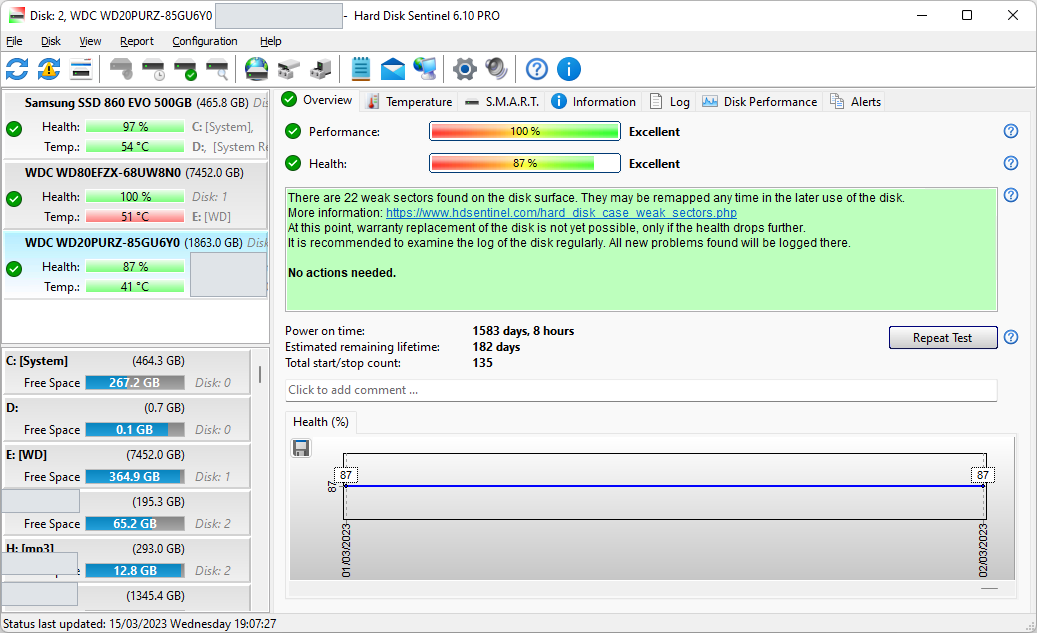
The S.M.A.R.T. page shows four columns that people often misread:
- Value is the manufacturer’s normalized score for the attribute. It is not a sector count.
- Worst is the lowest Value the attribute has ever reached. It does not track how many sectors are affected.
- Threshold is the manufacturer’s failure limit. A threshold of 0 means the attribute can never trigger a failure warning on its own.
- Data holds the raw count. For attribute 197, this is the number of pending sectors.
Read the Data column, not Value or Worst. Check whether it is displayed in hexadecimal or decimal before comparing numbers: a Data value of 0010 in hexadecimal is 16 sectors, not 10.
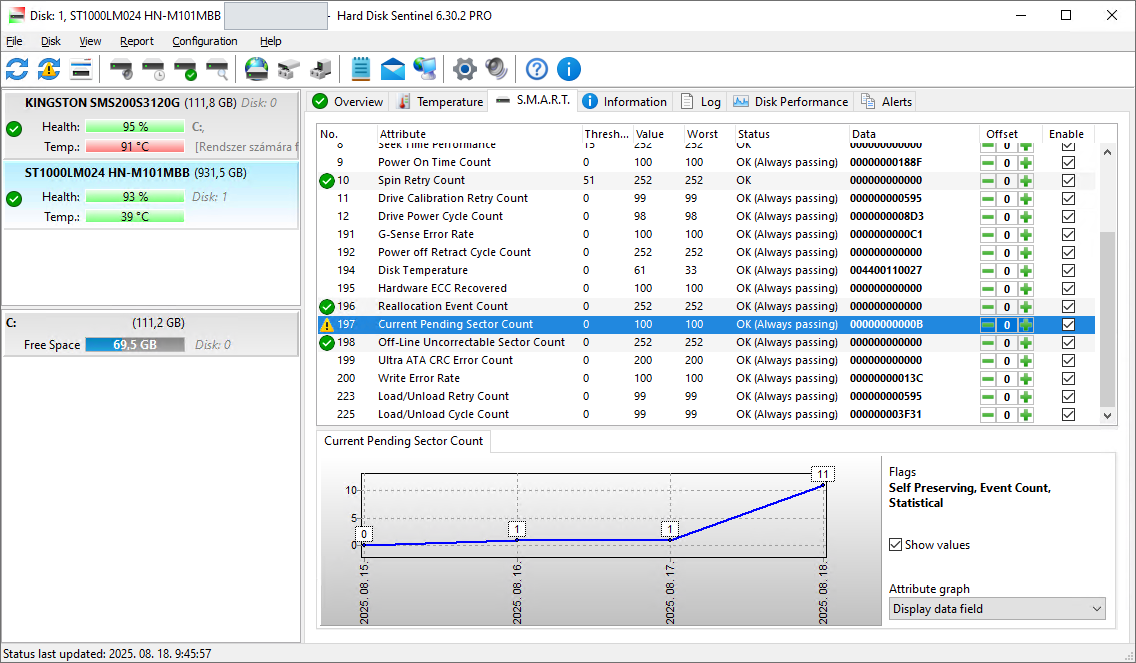
When you compare readings before and after a test, write down the Data values of attributes 5, 197 and 198 together with the date. Do not compare Worst. In a 2023 support reply, the developer made the same point to a user: Worst is not related to the actual number of problems, and judging a drive by one attribute is usually the wrong approach.
Hard Disk Sentinel itself does not judge a drive from one attribute. Its Health percentage combines several counters, including reallocated sectors, reallocation events and pending sectors, using a calculation described in the Help. For background on why raw counters matter more than normalized values, see how S.M.A.R.T. works, and for the full list of attributes, the S.M.A.R.T. attribute list in the Help. The Health calculation page explains how the percentage is built.
What’s Your Drive Trying to Tell You?
Check your drive’s health, monitor S.M.A.R.T. attributes and track changes with Hard Disk Sentinel.
No credit card required
Why sectors become pending
Hard Disk Sentinel’s documentation lists these possible causes:
- a real fault in the drive, such as the head, the surface or internal memory
- power loss while the drive is writing
- an unstable or weak power supply
- a faulty data cable or poor connection
- a problem with system memory or the motherboard
- overclocking
- overheating of the motherboard, chipset or controller
Several of these sit outside the drive, so the cause can be hard to pin down. The count looks the same whether the trigger was a loose cable or a worn surface, and an outside cause can still leave damaged data behind. Treat the cause as something to investigate, not something to assume.
Two clues can help, and neither is a rule. If new problems appear at random places on the surface, the environment is the likelier cause. If the same area fails again and again after repair, suspect the drive itself. Attribute 199 (Ultra ATA CRC Error Count) can add evidence about the connection. It records communication errors over the whole life of the drive, so a value that stays unchanged is history, while a value that keeps rising points at a cable, port or enclosure.
External USB drives deserve special attention. High-capacity 2.5 inch drives can fail to get enough power through a front panel port, a passive hub or a long extension cable. A direct port on the back of the computer, a shorter cable or a hub with its own power supply removes that variable.
Which tests read, which repair, and which erase
The Surface test in Hard Disk Sentinel mixes tests that leave your files alone, tests that write to the drive while trying to keep your files, and tests that erase everything. Read this before you start anything.
Warning: some of these tests permanently erase everything on the drive.
- Write, Write + read and Reinitialise overwrite the entire drive on purpose. Every stored file is destroyed. Do not count on getting anything back afterward. The plain Write test is part of the Standard edition, and it erases the drive just the same. Run these tests only after you have copied what you need to another drive and opened some of the copies to check them, or on a drive that holds nothing you need.
- Quick Fix, Disk Repair and the refresh test are designed to keep your files, but they write to the drive. File fragments stored on damaged sectors can still be corrupted, and a repair cannot bring back content that was already unreadable. If power or the connection fails while one of them runs, data can be lost.
- Read does not intentionally overwrite anything, but it is not free of risk. On a drive that is failing, every extra read adds stress.
- If the drive holds irreplaceable data and is getting worse, stop and read the section on when to stop testing before you run any test at all.
| Test | What happens to your files | Edition (registered) | In short |
|---|---|---|---|
| Read | Not overwritten | Standard and above | Reads the surface and maps slow or unreadable blocks. Repairs nothing. |
| Quick Fix | Kept, with some risk | Professional and Enterprise | Re-checks the sectors and areas most likely to be damaged. Covers a small part of the surface. |
| Disk Repair | Kept, with some risk | Professional and Enterprise | Reads the whole surface and asks the drive to repair weak sectors. |
| Refresh (Read + Write + read) | Rewritten in place, with some risk | Professional and Enterprise | Refreshes data that can still be read. Not a repair for unreadable sectors. |
| Write | Erased | Standard and above | Overwrites every sector with a pattern. |
| Write + read | Erased | Professional and Enterprise | Write, then a read back to check. |
| Reinitialise | Erased | Professional and Enterprise | Overwrites with a special pattern and reads back, repeated for the number of passes you set. |
The names follow the Surface Test help, and the edition column follows the Help and the store comparison as of November 2026. Check both against your own build.
What each test does in more detail
- Read reveals problems and never repairs them. Hidden problems can remain, and a clean result is not a guarantee. It is the usual first step on a stable drive.
- Quick Fix goes to the places most likely to hold problems: sectors in the drive’s internal error log or pending list, key areas such as the partition table, the Master Boot Record and the file system structures, and recently modified sectors that a power loss may have damaged. Each sector it checks comes with the block around it, about 1/10,000 of the drive’s capacity, so the whole test covers roughly 1 to 2 percent of the surface. It runs up to five passes and finishes in minutes, so it can miss problems elsewhere on the drive. It can restore weak sectors or reallocate them, and it may suggest Disk Repair or Reinitialise afterward. The program lists the affected files when it finishes.
- Disk Repair reads the complete surface and asks the drive to repair or reallocate the pending and weak sectors it meets. Where Quick Fix checks selected places, Disk Repair examines everywhere. It takes hours, and it carries the same file fragment risk as Quick Fix.
- Refresh is a data-refresh operation, not a repair method. It reads data that can still be read, writes the same data back and reads again, with the aim of keeping your files. It does not fix pending sectors that are already unreadable, so do not choose it to clear a pending sector count.
- Write overwrites every sector, with zeroes by default. This forces the drive to check weak sectors and reallocate bad ones. It does not guarantee that the problem stays fixed.
- Write + read behaves like Write with a read-back step, so the same data loss applies.
- Reinitialise is the most intensive and slowest test. Health can drop further while it runs, since it reveals more problems.
Editions. At the time of writing (November 2026), the Hard Disk Sentinel developer has confirmed that registered Standard includes the plain Read and Write tests. That is why the Surface Test help does not mark them as Professional only, and Write still erases the drive. The same Help page marks Disk Repair, Write + read, refresh and Reinitialise as Professional only. The store comparison lists a surface test for Standard and above, and complete surface analysis, refresh, reinitialise and repair for Professional and Enterprise. It lists Quick Fix, which has its own documentation page, for Professional and Enterprise as well. It lists no surface test for the Trial, and the Help says unregistered versions cannot start tests, so this article does not rely on the Trial for any of them. Check the current comparison before you choose an edition, since these details can change.
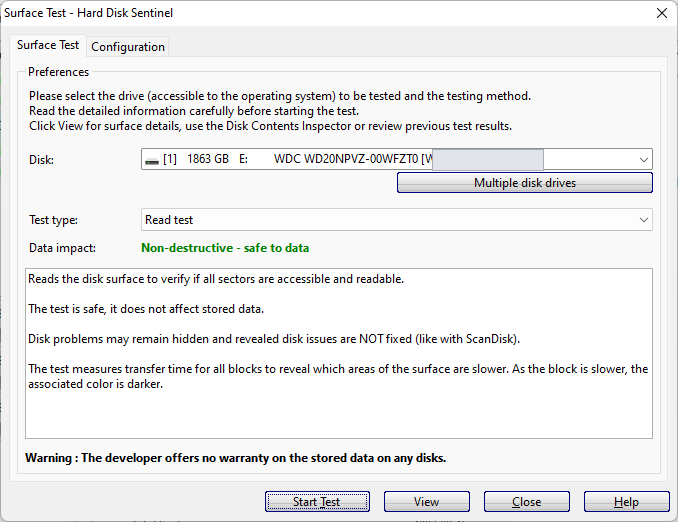
While a repair or overwrite runs. Reallocating bad sectors can take minutes or hours, and the program or the whole system may seem unresponsive. The Help advises against cancelling, resetting or powering off during that time. USB drives can disconnect under the sustained load, so connect the drive directly to the computer when you can. The Quick Fix page covers what Quick Fix examines in more detail.
Reading the surface map
After a surface test, Hard Disk Sentinel draws the surface as 10,000 blocks. Green blocks were processed without errors. Dark green blocks were slower but good: a few scattered ones are normal, while a continuous patch of them, especially next to yellow or red blocks, deserves attention. Yellow blocks were damaged but repaired after retries. Red blocks could not be processed. A write-based test can force the drive to deal with red blocks, but it erases the drive, so read the warning above before you consider it. White blocks have not been processed yet.
Be careful with the word “damaged.” On the surface map, yellow means a block needed retries. In S.M.A.R.T. terms, a weak or pending sector is a different thing. Do not read one as the other.
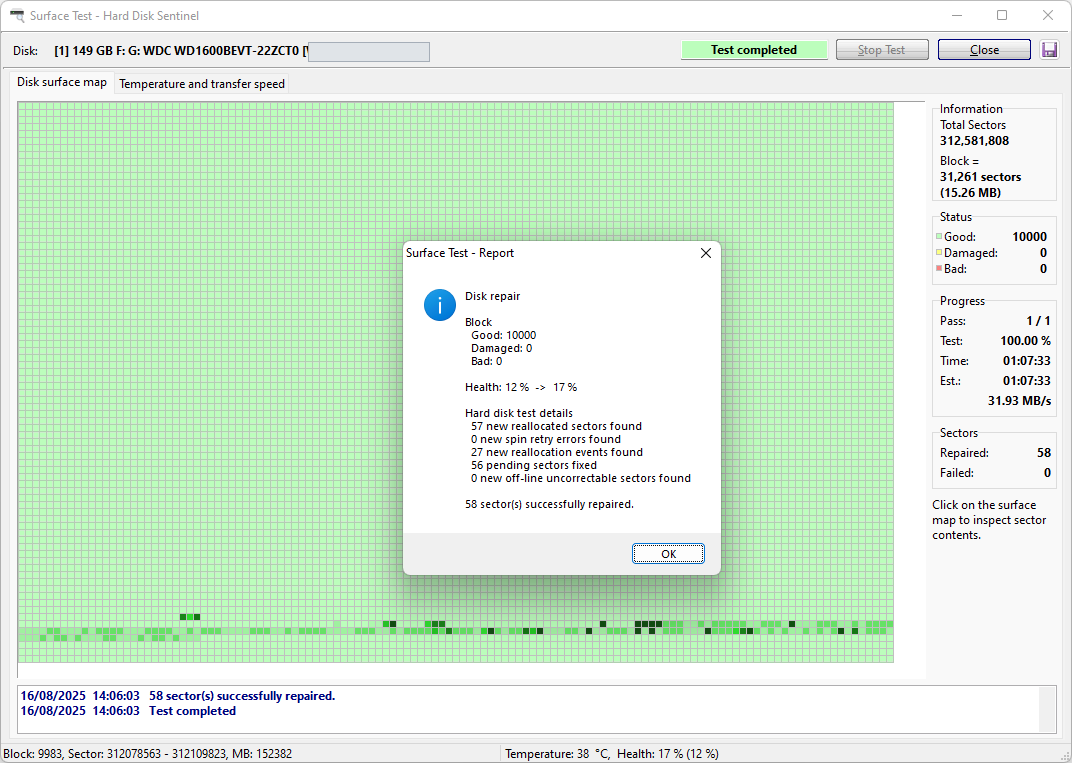
A final map can be all green even though sectors were repaired during the test, as the 58 repaired sectors in this August 2025 report show. That is a test result, not proof of lasting reliability, and it is a different case from the 2019 report below.
Hard Disk Sentinel Tip
A green surface map does not prove that a pending sector counter is stale.
What the user reported (2019): One pending sector on a data drive. A Disk Repair test ran for about five hours, ended with every block green and found nothing.
What the developer answered (January 2019): The drive probably had not updated its counter, which is rare and can follow a power loss, and an offset could acknowledge it.
What the user reported next: A later Reinitialise run found and repaired one pending sector.
Keep in mind: This is one report from one drive, not a rate. Reinitialise erases the entire drive, so it is a record here, not a test to run next. Read the data loss warning earlier in this section first.
A sensible order for testing
No sector count or Health percentage decides this by itself. The order below follows Hard Disk Sentinel’s own documentation and stays qualitative on purpose. Part A protects your data and decides what to do with the drive. Part B is an optional step that erases it.
Part A: Protect the data and diagnose
- Decide which situation you are in. If the drive looks unstable and the data cannot be replaced, stop here and consider professional recovery before any scan.
- Copy what you cannot replace. Start with the most important files and take the rest afterward, since copying stresses a failing drive too.
- Fix the environment. Replace or reseat the data cable, change the port, remove adapters, splitters and extension cables, check the power supply and stop any overclocking. Test the drive in another computer if you can.
- If the drive is stable, run a Read test. Look at the surface map and note the S.M.A.R.T. numbers. Stop the test if the drive starts to click, disconnect or freeze the system.
- If problems are few, the drive is stable and your files are safe elsewhere, a data-preserving repair is an option, and the choice depends on how the drive is doing. When Health is relatively high, Quick Fix can be useful, since it targets suspicious sectors and important areas. When Health is lower, or Quick Fix did not settle the problem, Disk Repair examines the whole surface and tries to repair the weak sectors it finds. Both keep your files by design, with the residual risk described above, so neither replaces the backup.
- Check the counters again. Compare the S.M.A.R.T. values with your earlier screenshot over the following days and weeks, using the list in the section on what to check after a repair. Run another Read test only if the drive has stayed stable and you need the result to make your next decision. Do not repeat full-surface scans on a drive that is deteriorating. Then decide: keep using the drive with monitoring, move the important data off it, or replace it.
These choices come from experience, not thresholds. The developer’s practical experience is that Quick Fix tends to suit a drive whose Health is still relatively high, around 80 percent or above, and that Disk Repair suits lower Health or a Quick Fix that was not enough. Those figures come from what he has seen on many drives, and they are not an automatic rule. How the drive behaves, what the data is worth and whether a verified backup exists come first. A heavily degraded drive that holds irreplaceable data should not go straight into intensive repair, whatever its percentage says.
If problems are many, or they return after the environment is fixed, treat the drive as a candidate for replacement and read the section on when to stop testing.
Part B: Optional, only after your data is secured
Warning: this step erases the entire drive.
Write and Reinitialise overwrite every sector on purpose. All stored files are destroyed, and you must not rely on getting them back. Continue only if your backup is complete and you have opened files from it to check them, or the drive holds nothing you need. Only start the test once you have accepted that the whole drive will be overwritten. Do not run it on a drive that shows any of the warning signs in the stop-testing section.
Write or Reinitialise can make sense when you were going to wipe the drive anyway, or when you plan to reuse a drive after backing it up and want to force it to deal with its weak sectors. They are not the default answer to many pending sectors, or to pending sectors that keep returning. If the problems come back afterward, replacement is the safer conclusion.
Reinitialise is the most intensive option. In the developer’s practical experience it can be worth a try on a drive with very low Health, below 50 percent, as an optional last stage after a verified backup, either to learn more about the drive or to attempt to reuse it. It does not apply to a drive whose data you still need. The developer noted that connecting the drive externally can be an option. Treat that as conditional: some USB controllers disconnect a struggling drive under sustained load, which stops the test partway, so use whichever connection has been steadiest for that drive.
After the test, compare the counters as in step 6 of Part A.
If your edition does not include a test in this list, the steps that need it are not available to you. Backing up and replacing the drive still are.
Why the count can rise during a repair
This surprises many people. A repair can reveal more weak sectors than the drive showed when you started, and the count can end higher than where it began. A 2025 support thread shows it clearly.
From Hard Disk Sentinel Support
What the user reported: A repair on a high-capacity USB 2.5 inch drive started with 119 weak sectors. During the run the count climbed to 155. The test reported 154 sectors repaired, and the program then showed 194.
What the developer explained: This happens. The repair fixed the sectors it found, and the test revealed more at other positions. He pointed to the operating environment, in particular cables, connections and insufficient power for a drive of that kind, and advised checking those before repeating the test.
A repair that leaves the cause in place can keep finding new weak sectors, so removing the cause is part of the repair.
A 2024 thread shows the same pattern with a different drive. The user reported that the pending count rose again during a Reinitialise run, shortly after a Disk Repair had brought it to zero. The developer asked the user to check the SATA and power cables, connections, any power splitters or adapters, and then repeat the repair. Later in that thread a test stopped with an error that the developer explained as the drive having dropped off the connection, as if the cable had been unplugged, which turned every following block red. His advice was to reconnect, swap ports or cables and try again. The user then reported changing the cable, the port, the power connection and the position of the drive, after which the test completed normally.
Both are historical support cases from individual drives, not a rate you can expect and not a check of the current software.
Why the count or Health may not change afterward
After a successful repair, a sector has either been restored or reallocated. In both cases a new test passes, since the sector works again or the drive reads a spare sector instead. That is why a clean test and a low Health value can both be true.
What This Result Means
Clean retests, Health still 51 percent.
What the user reported (2022): After Quick Fix and Disk Repair, the pending and uncorrectable counts returned to zero and many retests came back clean, yet Health still stood at 51 percent.
What the developer explained (September 2022): After repair a sector is either restored or reallocated, and both pass a retest. The drive keeps a lifetime record in its S.M.A.R.T. counters, such as reallocated sectors, and does not reset them, so Health does not return by itself. Whether to replace the drive or accept it as it is stays the user’s decision.
How to read it: A clean test shows the drive can read and write its sectors today. It does not predict how the drive will behave next month, and it does not erase its history.
A separate reply from May 2022 covers a different case: when the problem was only pending sectors that the drive restored to normal, Health usually recovers on its own, while reallocated and similar counters stay for the life of the drive.
What to check after a repair. Keep monitoring, and make a fresh backup if Health starts to fall again, even by 1 percent, before any further testing. Compare each of these with your earlier screenshot:
- Overview: the Health percentage, and how it changes over the following days and weeks.
- S.M.A.R.T. attribute 197: whether the pending count stays at zero or comes back.
- Attribute 5, Reallocated Sectors Count: a higher value than before means sectors were retired in between. That can be the repair doing its job, and it is not proof that the drive is now safe.
- Attribute 196, Reallocation Event Count, where the drive reports it: this counts reallocation events, not sectors, so it is a different number from attribute 5. Do not read one as the other.
- Other counters such as 198, where they apply: watch whether they change, since manufacturers use them differently.
- The Log page: it records when values changed, which helps separate a one-time event from a steady trend.
- Alerts, when your edition supports them: an alert can tell you about a change, but check your edition and settings first, and do not make an alert your only safeguard.
A drive may run more smoothly after a repair, and Health may improve, yet attribute 197 can still rise again, especially on older, heavily used or degraded drives. A clean test records what was observed that day. The monitoring above is how you notice what changes afterward.
What the offset does and does not do
Hard Disk Sentinel can acknowledge old problems, so the program reports only new ones. This is a change to what the program displays. The drive’s own counters are not cleared. Hard Disk Sentinel’s own documentation describes it as virtual clearing, a last step to consider only after a surface test finishes without errors. This article gives no steps for it. The 2019 case in the surface map section shows why: a clean repair pass does not prove that the counter is stale.
When to stop testing and plan a replacement
More testing is not always the safe choice, since even a Read test asks a struggling drive to read every sector. Stop and put your data first if:
- the drive clicks, repeatedly disappears from the system, or freezes the computer during reads
- the count keeps rising after you fixed the cable, port and power
- the same area fails again after repair
- the reallocated count is rising along with the pending count, or Health keeps falling
- you have needed repeated repairs and weak sectors keep returning
If the drive holds irreplaceable data and shows any of these signs, do not run any further scan, repair or overwrite test, and do not use Write or Reinitialise in the hope that the pending sectors will go away. Copy only the most important files first, with as little strain on the drive as you can. If that does not work, or the data cannot be replaced, contact a professional data recovery service before you try anything else. No service can promise a result, but extra reads and writes on an unstable drive can shrink what is left to recover.
Repair is never a guarantee. For data that matters, a drive that keeps producing new weak sectors after the environment is ruled out is a candidate for replacement, whatever its Health percentage says.
Reusing a drive after a repair. Weigh several things together: whether Health has improved and stays stable, what the stored data is worth, the drive’s age and usage, its estimated remaining lifetime (an estimate, not a prediction), how costly and difficult a migration or replacement would be, how much depends on the drive, and whether it runs continuously, 24 hours a day. A stable repaired drive can stay in service for some lower-stakes workloads, with monitoring and backups kept on separate storage. For servers, important production work or irreplaceable data, an earlier failure can justify replacing the drive in advance, even after a clean result. Never use a degraded drive as the only destination for a backup.
Where Hard Disk Sentinel fits
Hard Disk Sentinel shows the pending sector count, the Health percentage and the S.M.A.R.T. attributes for your drives, and it records when those numbers change. That makes it easier to notice a rising count early and to compare results before and after a test. The store comparison shows which edition includes which surface tests: plain Read and Write in registered Standard, and complete surface analysis, refresh, reinitialise and repair, plus Quick Fix, in Professional and Enterprise.
To see your drive’s current Health and S.M.A.R.T. values, including attribute 197, you can download the Hard Disk Sentinel Trial.
Frequently asked questions
Does a count of 1 matter?
The size of the count does not tell you the cause. One pending sector can be a harmless leftover that clears on the next write, or the first sign of a failing area. The 2019 case above began with a single sector that, by the user’s later report, turned out to be real. Back up, check the environment and watch whether the number returns.
The count dropped to zero by itself. Is the drive fine?
Not necessarily. The drive may have rewritten the sector and found it good, or it may have reallocated it. To tell which, compare the current attribute 5 value with an earlier reading, such as a screenshot from before the count dropped. A non-zero attribute 5 in a single screenshot does not show that a new reallocation happened, since those sectors may have been there for a long time. If attribute 5 is higher than before, the drive reallocated sectors in between. Zero pending sectors today does not rule out new ones tomorrow, so keep watching.
Will CHKDSK, reformatting or repartitioning clear the warning?
Hard Disk Sentinel’s documentation says CHKDSK repairs the partition, not the drive, and that the problem remains after repartitioning or reformatting. Formatting erases the data on the volume too. Neither is a substitute for checking the cable and power or for a drive-level test.
Does this apply to SSDs and NVMe drives?
Only if the drive reports attribute 197. Some SATA SSDs do, and the meaning and behavior can differ by model. NVMe drives do not necessarily expose the same attribute table as SATA drives. Open the S.M.A.R.T. page and check what your drive lists.
Which Hard Disk Sentinel edition do I need for these tests?
Registered Standard includes the plain Read and Write tests, and Write erases the drive. Disk Repair, Write + read, refresh, reinitialise and Quick Fix are listed for Professional and Enterprise, and the comparison lists no surface test for the Trial. Confirm on the store page before you buy, since editions can change.
If you are not sure whether more testing is safe
Pause the write-based tests. Copy the files you cannot lose, starting with the most important. Save a screenshot of the S.M.A.R.T. page and, if you have run one, the surface map. Then post both on the Hard Disk Sentinel discussion board, which you can reach from the official support page, with the drive model and how it is connected. A short description of what you already tried helps the person answering decide whether a repair test is reasonable or whether replacement is the safer path. If the drive shows any of the warning signs above and the data matters, speak to a data recovery service first.


